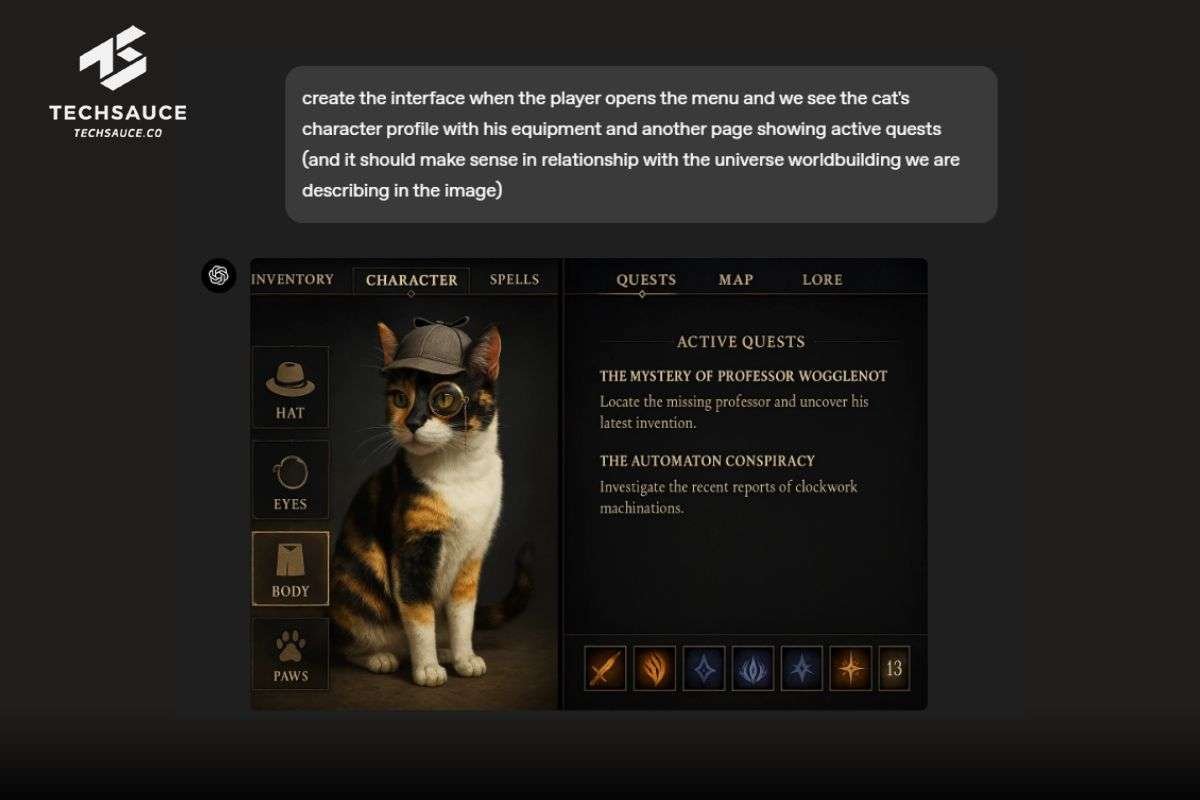
The digital canvas is transforming at lightning speed, and at the forefront of this revolution is OpenAI’s latest leap: GPT-4o image generation. This isn't just another incremental update; it's a paradigm shift, integrating powerful visual creation and editing directly into the conversational experience. But like any advanced tool, truly mastering GPT-4o Image Generation: Troubleshooting & FAQs means understanding its nuances, leveraging its strengths, and navigating its occasional quirks.
If you’ve dipped your toes into AI art, you know the frustration of a prompt misunderstood or a brilliant idea falling flat. This comprehensive guide is designed to cut through that noise, equipping you with the expert insights and practical troubleshooting tips you need to consistently achieve stunning results.
At a Glance: Key Takeaways for GPT-4o Image Generation
- Beyond DALL·E 3: GPT-4o’s image generation is natively integrated, offering superior capabilities like detailed scene construction, photorealism, and advanced text rendering within images.
- Conversational Powerhouse: Create and edit images directly through chat, leveraging multi-turn refinements and even using images as input for transformations.
- Precision Prompting is Key: Define lighting, composition, style, subject, and mood for optimal output. Don't forget aspect ratios!
- Troubleshoot Common Issues: Address prompt alterations, generation limits, color shifts, cropping errors, and content refusals with strategic adjustments.
- Leverage Reasoning Models: For complex, multi-step tasks or ensuring consistency, tap into models like
o3oro4-minifor their "thinking traces." - Master Advanced Features: Generate transparent backgrounds, clear text within images, and apply style transfers effectively.
- Access Anywhere: Available in ChatGPT (web/mobile), Sora, and via the OpenAI API.
Beyond DALL·E 3: What Makes GPT-4o Image Generation Special?
Gone are the days when image generation felt like a separate, siloed experience. GPT-4o seamlessly integrates visual creation and editing directly into your chat, fundamentally changing how we interact with AI for creative tasks. This isn't just DALL·E 3 under a new name; it's OpenAI's latest image model, built on the same autoregressive architecture as the GPT-4o large language model itself.
What does this deep integration mean for you? It translates into an unprecedented level of understanding. GPT-4o's image generator can:
- Produce Photorealistic Outputs: From intricate product shots to sweeping landscapes, the fidelity is astonishing.
- Accept Images as Inputs: Upload a photo and ask GPT-4o to modify it, making iterative editing a conversational breeze.
- Follow Detailed Instructions: Craft complex scenes with 10-20 discrete objects, dozens of characters, and maintain realistic lighting, depth, and spatial relationships.
- Render Legible Text: A significant leap forward, GPT-4o excels at creating signage, infographics, or UI mockups with crystal-clear, readable typography.
- Switch Styles Effortlessly: Move from Studio Ghibli to South Park, photorealism to painterly concepts, all within the same conversation.
- Understand Nuance: The model grasps cultural references, time periods, brand themes, and pop-culture motifs, allowing for highly specific and relevant creations.
This capability to merge complex linguistic understanding with sophisticated visual generation is a game-changer for creators, marketers, and anyone looking to bring their ideas to life. If you're eager to dive deeper into the overarching capabilities of this model, you can Explore OpenAI 4o image generation to see its full potential.
Getting Started: Accessing GPT-4o's Visual Prowess
Accessing GPT-4o's image generation feature is designed to be intuitive, whether you're a casual user or an API developer.
In the ChatGPT Application (Web or Mobile):
The simplest way is directly through the ChatGPT interface.
- Text Prompting: Simply type your image request into the chatbox, just like you would any other prompt. GPT-4o intelligently recognizes the intent to create an image. For example, "Generate an image of a cat wearing a tiny chef's hat, baking a cake."
- "Create an image" Tool: Alternatively, in some interfaces, you might find a specific "Create an image" option or tool selector. Choosing this explicitly directs the model to its visual generation capabilities.
Via API and Other Platforms:
For developers and those integrating AI into their workflows, GPT-4o's image generation is accessible through:
- Sora: OpenAI's text-to-video model also leverages underlying image generation capabilities.
- OpenAI API: Use the
gpt-image-1endpoint, compatible with models likegpt-4o,gpt-4o-mini,gpt-4.1,gpt-4.1-mini,gpt-4.1-nano, ando3. This offers powerful programmatic control for custom applications.
Supported Input Formats for Reference Images:
When providing reference images for editing or style transfer, GPT-4o accepts common file types: - PNG
- JPEG
- WEBP
- Non-animated GIF
This flexibility ensures you can easily bring your existing visual assets into the creative process.
Crafting Your Vision: Prompting for Success with GPT-4o Images
The adage "garbage in, garbage out" holds true for AI image generation. While GPT-4o is remarkably intelligent, the clarity and detail of your prompts directly correlate with the quality and precision of the output. Think of your prompt as a director's brief to a highly skilled artist.
The Anatomy of a Powerful Prompt:
For precise results, don't just state what you want; describe it. Include details that cover:
- Subject: What is the main focus? (e.g., "a majestic lion," "a vintage car")
- Action/Interaction: What is the subject doing, or how is it interacting? (e.g., "reading a book," "parked by a diner")
- Environment/Background: Where is it taking place? (e.g., "in a bustling city square," "on a desolate alien planet")
- Style/Medium: What artistic style or medium should it resemble? (e.g., "oil painting," "digital art, cyberpunk style," "Studio Ghibli aesthetic," "photorealistic product shot")
- Lighting: How is the scene lit? (e.g., "golden hour light," "neon glow," "dramatic chiaroscuro")
- Composition: How should elements be arranged? (e.g., "close-up portrait," "wide-angle shot," "rule of thirds")
- Color Palette: Any specific colors or mood? (e.g., "vibrant and colorful," "monochromatic with a splash of red," "muted autumn tones")
- Mood/Atmosphere: What feeling should the image evoke? (e.g., "whimsical," "eerie," "energetic," "serene")
Example of a Detailed Prompt:
Instead of: "Cat baking cake."
Try: "A photorealistic image of an adorable tabby cat wearing a tiny white chef's hat, meticulously decorating a vibrant, rainbow-layered birthday cake on a rustic wooden kitchen counter. Soft, warm overhead lighting illuminates the scene, casting gentle shadows. Focus on the cat's intense concentration, with a slightly messy flour dusting on its paws. Wide-angle shot, cozy atmosphere."
Aspect Ratios: Don't Forget the Canvas Shape!
GPT-4o defaults to a square 1:1 aspect ratio (1024x1024 pixels). If you need a different orientation, always specify it in your prompt. - Square: 1:1 (default, 1024x1024)
- Landscape: 3:2 (1536x1024)
- Portrait: 2:3 (1024x1536)
Example: "Generate a majestic mountain landscape, bathed in twilight, in a 3:2 aspect ratio."
Leveraging Reasoning Models for Complex Prompts:
If you're struggling to articulate your vision, or if your task is complex and requires consistency across multiple elements (style, font, colors), consider using a reasoning model likeo3oro4-mini. These models can often generate three varied prompts based on your initial input, helping you refine your ideas.
Tip: When iterating on an existing image, these models (especiallyo3) can be instructed to output the prompt they used to generate an image. This "thinking trace" is invaluable for understanding how the AI interpreted your request and for making precise revisions.
Decoding Common Roadblocks: Troubleshooting GPT-4o Image Generation Issues
Even with the most advanced AI, you'll encounter moments when the output isn't quite what you envisioned. Understanding the common pitfalls and how to troubleshoot them is crucial for consistent success.
Why Isn't My Image Generating Properly? (Prompt Alteration & Influence)
The Problem: You type a perfect prompt, but the image is slightly off, or a new image in a chat seems to inherit elements from a previous one you didn't ask for.
The Cause:
- ChatGPT's "Helpfulness": Especially in multi-turn, vague, or long prompts, ChatGPT (the LLM wrapping the image model) might subtly alter or interpret your initial prompt in an attempt to be "helpful." This can introduce unintended biases or shift the focus.
- Chat Memory: The model retains memory of images generated in the same chat. While great for minor edits, this can become a hindrance for independent tasks, as previous outputs might subtly influence new generations.
The Fix:
- New Chat for New Ideas: For completely independent or drastically different image generation tasks, always start a new chat. This clears the "memory" and ensures your prompt is interpreted fresh.
- Be Explicit: If you notice prompt alteration, try simplifying your language or explicitly stating "Do not alter this prompt: [your prompt here]" (though this isn't foolproof).
- Ask for the Prompt: If an output is unsatisfactory, ask the model, "What prompt did you use to generate that image?" This reveals any alterations and helps you revise more effectively. Then, start a new chat with the refined prompt.
Hit a Wall? Understanding Generation Limits & Queues
The Problem: Your image generation requests are slow, or you receive messages about reaching a limit.
The Cause: Generation limits are dynamic, particularly for free-tier users or during peak usage times. OpenAI manages resources to ensure fair access, leading to queues or temporary caps.
The Fix:
- Patience: Often, waiting a few minutes (or longer, depending on demand) is all that's required.
- Ask for Time: If you hit a limit, simply ask ChatGPT, "How much longer until my image generation limits reset?" It can often provide an estimate.
- Consider a Paid Tier: For consistent, priority access and higher generation volumes, upgrading to a ChatGPT Plus subscription is recommended.
My Images Look Off: Color Shifts, Darkness & Cropping Glitches
The Problem: Images appear with an unexpected yellow tint, are overly dark, or have crucial elements cropped out.
The Cause: These are common rendering artifacts or interpretation issues within the model, often related to lighting instructions or the way it frames a scene.
The Fix:
- Specify Lighting: Explicitly describe the lighting you want: "bright daylight," "soft, even illumination," "vibrant colors." Avoid vague terms.
- Adjust Prompt for Brightness: If images are consistently dark, try adding terms like "well-lit," "bright and airy," "high key lighting."
- Control Composition: For cropping issues, be very specific about composition. Instead of just "a person," try "a full-body shot of a person standing," or "a close-up portrait, head and shoulders visible."
- Regenerate: Sometimes, a simple regenerate will resolve these minor rendering inconsistencies.
Dealing with Refusals: Content Policy & Safety Filters
The Problem: GPT-4o refuses to generate an image, often with a message about content policy violations.
The Cause: OpenAI has strict guidelines against generating harmful, explicit, hateful, or otherwise inappropriate content. The AI's safety filters are designed to be proactive.
The Fix:
- Review OpenAI's Policies: Familiarize yourself with the content policies to understand the boundaries.
- Rephrase and Soften: If your prompt was close to the line, try rephrasing it to remove any potentially problematic keywords or implications. For instance, instead of "a violent battle," try "a dramatic historical clash."
- Avoid Sensitive Topics: Understand that certain subjects, even when phrased innocuously, might trigger filters due to their inherent sensitivity (e.g., political figures, graphic medical content, specific types of violence).
- Focus on the Abstract: If you need to convey a concept that might be borderline, try to represent it metaphorically or abstractly.
Aspect Ratio Woes: When 1:1 Isn't Always 1:1
The Problem: You specify "3:2 aspect ratio," but the output is still square or an unexpected dimension.
The Cause: While GPT-4o largely respects aspect ratio commands, occasional misinterpretations can occur, especially if the prompt is very long, complex, or contradictory.
The Fix:
- Clear Placement: Ensure "in a 3:2 aspect ratio" (or your desired ratio) is clearly stated, preferably towards the beginning or end of your prompt, making it easy for the model to parse.
- Isolate the Command: If the prompt is very complex, try simplifying it and then adding the aspect ratio.
- Reiterate: If the first attempt fails, regenerate and explicitly remind the model: "Remember, I need this in a 3:2 aspect ratio."
The Upscaling Dilemma & Detail Drift
The Problem: There's no built-in upscaling feature, and minor details can shift or be lost when regenerating for minor changes.
The Cause: GPT-4o generates images at a fixed resolution. While subsequent edits can leverage the original, they are essentially new generations that try to match the original, which can lead to subtle variations.
The Fix:
- External Upscalers: For higher resolution, you'll need to export your GPT-4o image and use third-party upscaling tools.
- Focus on Core Elements First: Get the main composition and subjects perfect before diving into minute details.
- Incremental Edits: For small changes, make them one at a time within the same chat to help the model retain context. If details are crucial, consider regenerating the core image from scratch with a revised prompt if minor edits aren't sticking.
Struggles with Text, Specific Edits, and Complex Scenes
The Problem: The model struggles with non-Latin text, precise graph data visualization, or very specific, granular edits like fixing a single typo in generated text.
The Cause: While text rendering has improved dramatically, complex or non-Latin typography still presents challenges. Data visualization requires an extremely high degree of precision that current image models aren't always equipped for. Granular edits can sometimes be too fine-grained for the model's broader generative capabilities.
The Fix:
- For Non-Latin Text: Generate the image without text, then use an external image editor to add the specific non-Latin script.
- For Graph Data: Consider using a dedicated data visualization tool or generating elements separately and compositing them. GPT-4o can generate infographic-style elements, but not necessarily precise data plots.
- For Typos/Minor Edits: If a typo appears, regenerate the image. For highly specific pixel-level edits, you may need to export to a traditional image editor. The inpainting feature is primarily for generated images within the same chat and for broader changes.
Navigating Confusing Model Names & API Calls
The Problem: You encounter terms like Imagegen, gpt-image-1, 4o Image Generation, and image_gen.text2im, leading to confusion.
The Cause: OpenAI uses various internal and external names for its image generation capabilities across different products and API versions.
The Fix:
- Focus on Context: When using ChatGPT directly, simply refer to it as "GPT-4o image generation."
- API Clarity: If using the API, refer to the official OpenAI documentation. Currently,
gpt-image-1is the API endpoint for image generation, compatible withgpt-4oand other specified models. For broader conceptual understanding, just know thatGPT-4ois the overarching model powering these visual capabilities.
Advanced Techniques & Best Practices for Mastering GPT-4o Images
Moving beyond basic generation, these strategies will help you unlock GPT-4o's full potential and achieve consistent, high-quality results.
Configure for Consistency: Ensuring You Use the Right Tool
One of the most critical steps to avoid frustration is ensuring ChatGPT uses the correct image generation tool. Sometimes, it might default to older DALL-E versions if not explicitly guided.
Best Practice: Configure your ChatGPT Personalization settings.
Add this instruction:
"Never use the DALL-E tool. Always generate images with the new image gen tool. If the image tool is timed out, tell me instead of generating with DALL-E."
This ensures your requests are routed to GPT-4o's advanced capabilities.
The Power of Multi-Turn Refinements & Chat Memory
GPT-4o truly shines in iterative creation. Its ability to retain context within a conversation allows for seamless, multi-turn refinements.
How to Use It:
- Generate an initial image.
- Request specific changes: "Can you make the sky a bit more dramatic?", "Add a small bird in the corner," "Change the car to red."
- Restyle or Transform: "What would this look like during winter?" or "Apply a 'Ghiblify' style to this image."
Tip: Remember that while this memory is powerful for refinement, it can also lead to unintended influence for new, unrelated tasks. If you're starting a completely different image concept, begin a fresh chat.
Leveraging Reasoning Models for Complex Tasks
For highly structured, multi-step, or iterative generation tasks that demand consistency (e.g., maintaining a specific character's appearance, brand colors, or font across multiple images), you'll benefit from using a reasoning model (o3 or o4-mini) where available.
How They Help:
- Thinking Traces: These models can show you their internal thought process ("thinking traces") as they deconstruct your complex prompt and formulate their image generation instructions. This transparency is invaluable for debugging and learning.
- Consistency: By observing how the model interprets and translates your ideas into visual elements, you can better guide it to maintain consistency across several outputs.
- Logo Generation: For instance, generating logos is a multi-turn task that benefits immensely from reasoning models, using reference images and detailed descriptions.
Extracting Prompts for Iterative Improvement
If GPT-4o generates an image that's almost perfect, but you want to tweak it or use it as a base for future, similar creations, ask the model what prompt it used.
Example:
- You: "Generate an image of a serene forest."
- GPT-4o: (generates image)
- You: "That's lovely! What prompt did you use to create that image?"
- GPT-4o: (outputs its expanded, detailed prompt)
This expanded prompt is a powerful asset. You can then copy it, modify it, and start a new chat to generate variations with precise control. This is a crucial technique for learning how to prompt effectively and for maintaining creative consistency across projects.
Generating with Transparent Backgrounds & Text Within Images
Two highly requested features are now robustly supported by GPT-4o.
Transparent Backgrounds:
- Simply include "transparent PNG" or "transparent background" in your prompt.
- Example: "A minimalist icon of a smiling sun, transparent background."
- Use Cases: Creating stickers, logos, marketing assets that need to overlay on various backgrounds.
Text Within Images: - Be explicit about the text you want and its styling.
- Example: "A vintage diner sign glowing neon, displaying the words 'Open 24 Hours' in a retro script font."
- Use Cases: UI mockups, signage, infographics, marketing banners. This is a significant improvement over previous models that often produced garbled text.
Real-World Applications: Unleashing GPT-4o's Creative Potential
GPT-4o's image generation capabilities translate into a myriad of practical, real-world use cases, transforming how individuals and businesses approach visual content creation.
- Logo Design: Leverage multi-turn tasks, using reference images for style and detailed textual descriptions. A reasoning model can help maintain consistency across iterations, refining colors, fonts, and iconography until you achieve the perfect brand mark.
- Marketing Assets: Start with existing visuals, then prompt GPT-4o to change text, swap products, or alter environments. Need a summer ad campaign? Upload a winter scene and ask it to "make it look like summer with people enjoying a picnic."
- Coloring Book Pages: Specify a 2:3 aspect ratio and describe your scene with "line art style," "suitable for coloring," or "outline drawing." You can quickly generate unique pages for children's activities or adult relaxation.
- Sticker Images: Combine a specific subject with "transparent background" to create easy-to-use digital stickers or printable designs. Think cute animals, motivational phrases, or abstract shapes.
- Material Transfer: Upload one reference image with a desired material (e.g., "burlap texture") and another image with a subject (e.g., "a classic car"). Then prompt, "Apply the burlap texture from Image 1 to the car in Image 2."
- Interior Design Mockups: Upload a picture of a room, then prompt for specific furniture changes, wall color alterations, or the addition of new features. "Replace the sofa with a modern modular couch in forest green," or "Add a large abstract painting to the far wall."
These examples only scratch the surface. The conversational and iterative nature of GPT-4o image generation empowers you to explore creative concepts with unprecedented speed and flexibility.
Frequently Asked Questions (FAQs): Quick Answers You Need
What file types does GPT-4o accept for reference images?
GPT-4o accepts PNG, JPEG, WEBP, and non-animated GIF file types for reference images.
Can I upscale images generated by GPT-4o?
No, GPT-4o does not have an inherent upscaling feature. Images are generated at a fixed resolution. For higher resolutions, you'll need to export the generated image and use a third-party upscaling tool.
How do I generate an image with a transparent background?
Simply include "transparent PNG" or "transparent background" in your prompt. For example, "A vector icon of a coffee cup, transparent background."
Can GPT-4o generate legible text within images?
Yes, this is a significant improvement in GPT-4o. It excels at creating clear, legible typography for signage, infographics, or UI mockups. Be specific about the text content and desired font style in your prompt.
What are the supported aspect ratios for GPT-4o image generation?
The model supports:
- Square: 1:1 (1024x1024, default)
- Landscape: 3:2 (1536x1024)
- Portrait: 2:3 (1024x1536)
Always specify your desired ratio in the prompt.
Why did GPT-4o refuse to generate my image?
Generation refusals are usually due to your prompt violating OpenAI's content policies regarding harmful, explicit, hateful, or otherwise inappropriate content. Try rephrasing your prompt to remove any potentially sensitive or problematic elements.
How can I ensure I'm using the latest image generation model (GPT-4o's native tool)?
Configure your ChatGPT Personalization settings to explicitly instruct it: "Never use the DALL-E tool. Always generate images with the new image gen tool. If the image tool is timed out, tell me instead of generating with DALL-E." This helps direct your requests to the correct model.
Your Next Creative Leap: Moving Forward with GPT-4o Image Generation
GPT-4o's image generation capabilities represent a significant leap forward in accessible, powerful visual AI. By understanding its strengths, anticipating its quirks, and applying the troubleshooting tips and best practices outlined in this guide, you’re now better equipped to transform your imagination into tangible visuals.
Don't be afraid to experiment, iterate, and push the boundaries of your prompts. The conversational nature of GPT-4o makes it a fantastic creative partner, capable of evolving your ideas with each turn. Whether you're a designer, a marketer, a hobbyist, or simply curious, the power to create is now more intuitive and versatile than ever before. Go forth and generate!